
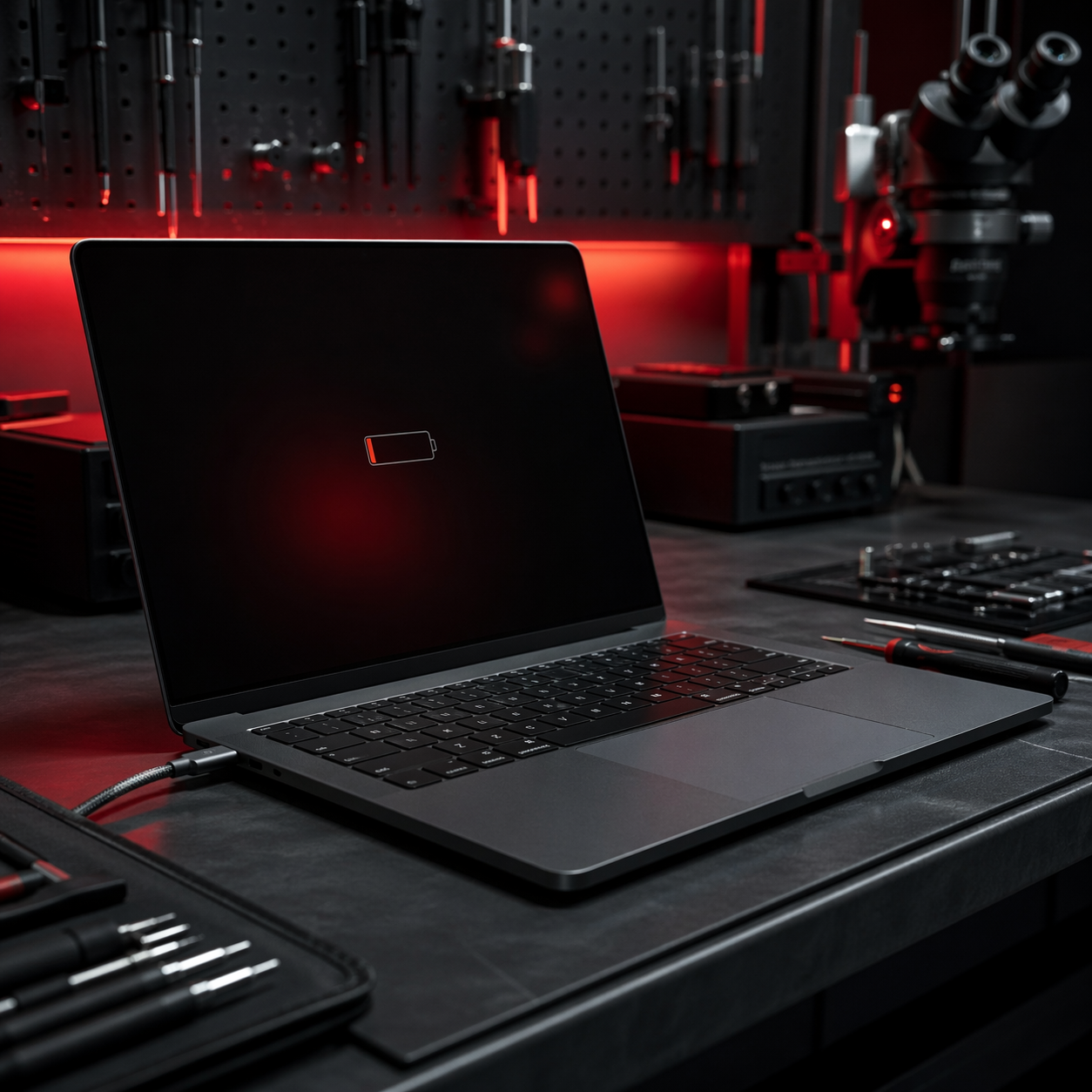
Laptop Not Charging? What You Can Try at Home Before Paying for Repair
PUBLISHED
April 22, 2026
LAPTOP NOT CHARGING? HERE’S WHAT YOU CAN SAFELY TRY AT HOME BEFORE YOU SPEND MONEY ON A REPAIR.
A laptop that refuses to charge can stop work, study, and everything else fast. You plug it in, the battery stays flat, the charging light does nothing, or it charges on and off with no consistency.
Sometimes the cause is simple, like a faulty charger, a bad wall socket, dust in the power connection, or a temporary power glitch. Other times it points to battery wear, charging-port damage, or an internal motherboard issue. The smart move is to rule out the safe fixes first before paying for repair unnecessarily.
Still not charging after the safe checks?
START REPAIR01. WHY A LAPTOP STOPS CHARGING IN THE FIRST PLACE
Laptop charging issues usually come from one of a few common areas. The charger may not be delivering stable power, the charging port may be loose or damaged, or the battery may no longer hold charge properly.
NOT EVERY LAPTOP CHARGING ISSUE IS SERIOUS. MANY START WITH THE CHARGER, POWER SOURCE, OR A SIMPLE POWER RESET.
02. FIRST STEP: CHECK THE CHARGER AND WALL SOCKET PROPERLY
Before blaming the laptop itself, test the charger setup properly. A damaged adapter or weak power source causes a lot more charging problems than people expect.
- Try a different wall socket
- Check whether the adapter gets unusually hot or cuts in and out
- Inspect the cable for fraying, bends, or exposed damage
- Confirm all charger connections are fully seated
If the laptop starts charging on another socket or with a known good adapter, the laptop may not be the real problem.
03. TRY A FULL POWER RESET
A full power reset can clear temporary charging or power-management glitches that stop the laptop from recognising the charger properly.
- 1 Shut the laptop down fully
- 2 Unplug the charger
- 3 If the battery is removable, remove it
- 4 Hold the power button for 15 to 20 seconds
- 5 Reconnect the charger and test again
THIS IS ONE OF THE SAFEST FIRST FIXES TO TRY, AND IT OFTEN CLEARS ODD POWER BEHAVIOUR WITHOUT ANY DISASSEMBLY.
04. LOOK FOR PATTERNS THAT POINT TO BATTERY OR PORT TROUBLE
The exact behaviour matters. A laptop that only charges when the connector is held at an angle is a very different case from a laptop that stays plugged in but never gains battery percentage.
IF THE CHARGER ONLY WORKS AT A CERTAIN ANGLE, THAT USUALLY POINTS TO PORT DAMAGE, A LOOSE CONNECTION, OR CABLE FAILURE.
Charging keeps cutting in and out?
BOOK A DIAGNOSTIC05. CHECK THE BATTERY AND SOFTWARE SIDE
Sometimes the charger is fine but the battery health is poor, the system is limiting charging, or background issues are stopping normal behaviour.
- Restart the laptop cleanly
- Check whether battery percentage changes at all over time
- Notice if the laptop runs only while plugged in
- Watch for battery warnings or swelling signs
If the laptop only works on charger power and dies immediately after unplugging, the battery may be the main issue rather than the port.
06. WHAT NOT TO DO WHEN YOUR LAPTOP IS NOT CHARGING
This is where a small issue can become a more expensive one if you force the wrong fix.
- Do not keep forcing the charger plug roughly into the port
- Do not keep using a frayed or overheating adapter
- Do not open the laptop unless you know exactly what you are doing
- Do not ignore battery swelling, burning smells, or heat near the charging area
Safe troubleshooting means checking cleanly and stopping before you damage the charging port, battery, or board further.
07. WHEN IT IS NO LONGER AN AT-HOME FIX
Sometimes the issue is deeper than the adapter or wall socket. If the laptop still does not charge after safe tests, or shows signs of port or battery failure, it needs proper diagnosis.
- The charging port feels loose or damaged
- The battery never increases despite long charging
- The charger or laptop gets unusually hot
- Multiple known-good chargers fail the same way
That is usually the point where professional repair saves time and prevents more expensive damage to the charging port, battery, or motherboard.
TRIED THE SAFE HOME FIXES AND IT STILL WON’T CHARGE? GET IT CHECKED BEFORE A SMALL POWER ISSUE TURNS INTO A BIGGER REPAIR.
START YOUR REPAIR NOWISSUE STILL PERSISTS? TAKE A SCREENSHOT OF THIS MESSAGE AND COME TO ANY NEARBY STORE (https://foneworlduk.co.uk/locations/) TO GET 10% DISCOUNT ON YOUR REPAIR! 😉
Industrial Security
All repairs monitored by level 4 security protocols. No data leakage guaranteed.
Certified Tech
Hardware authorization verified. Only OEM-grade components utilized in this mission.